Install the plug-in
Unzip the download into a folder you will keep, for example Documents/Lightroom Plug-ins. Lightroom Classic remembers where a plug-in lives, so the Downloads folder is a poor place for it.
In Lightroom Classic choose File → Plug-in Manager, click Add, select PhotoMentor.lrplugin and click Done. On macOS the plug-in folder looks like a single file; that is expected.
Download the decisions from PhotoMentor
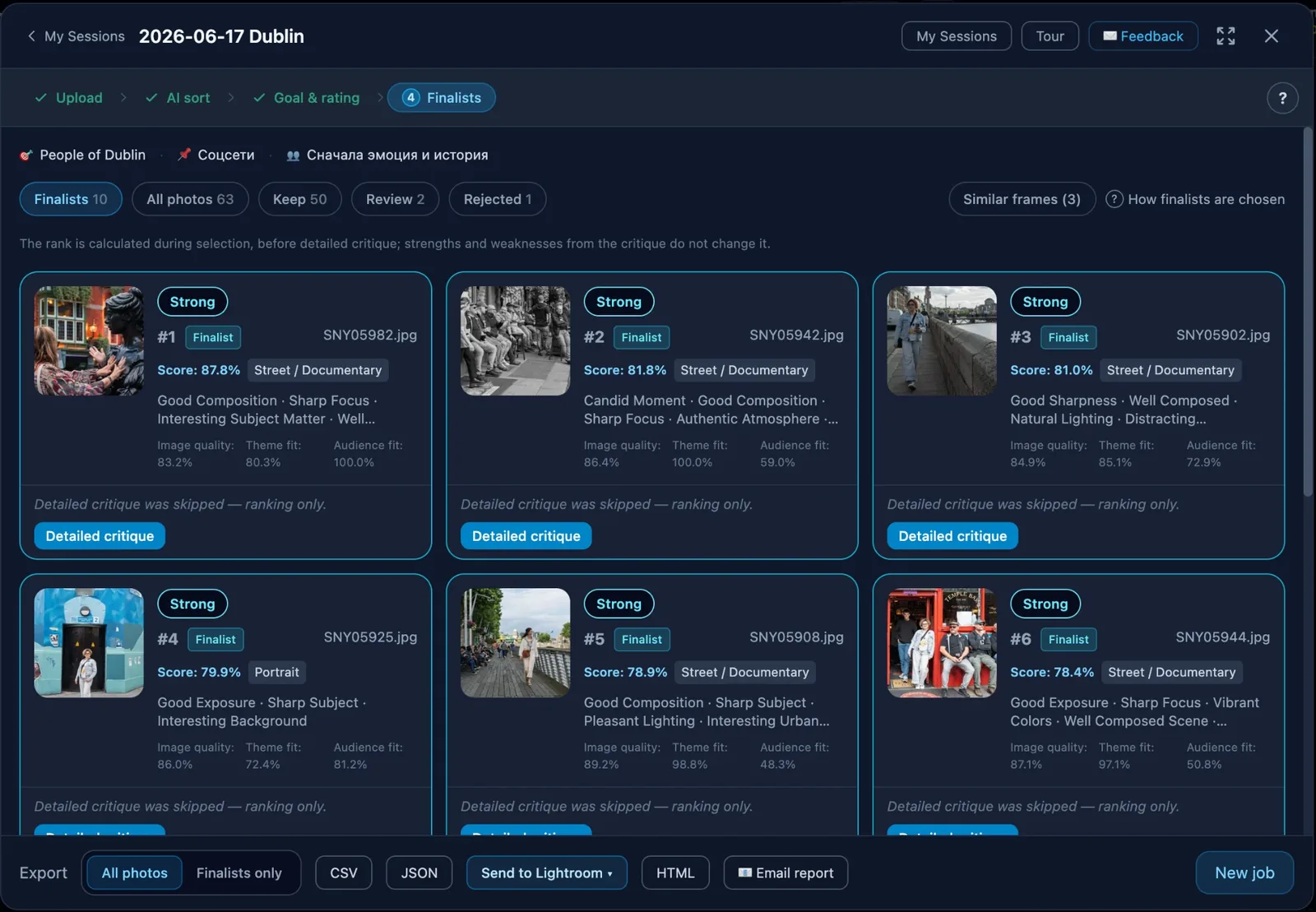
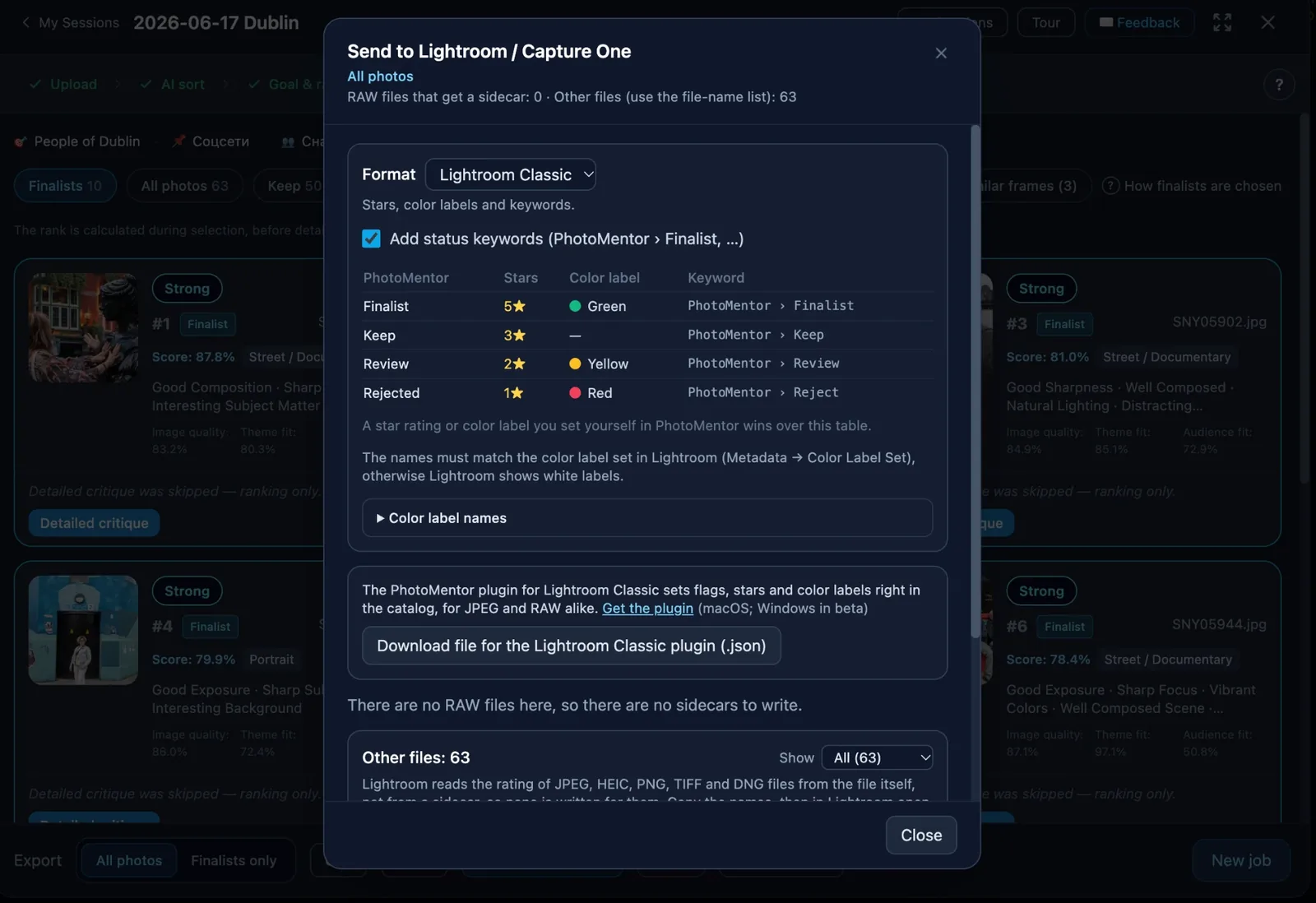
In Bulk Culler, open the session and choose Send to Lightroom, then the photos to send: the finalists, everything except rejects, all photos or the current filter. Pick the Lightroom Classic format and click Download file for the Lightroom Classic plugin.
The file lists each photo’s decision, stars, label and keywords. It holds no photos, no paths outside the shoot folder and no account data.
Apply them in Lightroom Classic
Import the photos first if they are not in the catalog yet. Then choose Library → Plug-in Extras → PhotoMentor: Apply Culling… and pick the file.
The plug-in looks for the photos across the whole catalog and shows how many it found. Choose what to apply—flags, stars and labels, keywords, AI captions and genres, a collection per status—and click Apply. To limit the search, tick Only among the selected photos.
Check the report, undo if needed
A report lists what changed, what was already set and which values were left as you had them, plus every photo it could not match, ready to copy.
Edit → Undo reverts the whole run. Running the same file again changes nothing; running a newer export from PhotoMentor updates the plug-in’s own marks and keeps yours.
What the plug-in sets
Finalists get a Pick flag, five stars and a green label; keepers a Pick flag and three stars; photos left for review two stars and a yellow label; rejects a Reject flag, one star and a red label. Keywords go under PhotoMentor, for example PhotoMentor › Finalist.
Labels are set by colour, so a renamed or translated label set works as it is. Stars, labels and flags you set yourself in Lightroom are kept unless you tick Overwrite; a caption is only added where the field is empty.
What it never does
The plug-in only changes the catalog. It does not write photo files or XMP sidecars and does not delete anything: remove rejects with Lightroom’s own Photo → Delete Rejected Photos when you are ready.
If Catalog Settings → Metadata → Automatically write changes into XMP is on, Lightroom itself writes the new metadata into your files, as it does for any change you make by hand.
How photos are matched
Photos are matched by file name and, where several share a name, by folder, file size and capture time. A photo that still matches more than one is left alone and listed in the report: no rating is better than a rating on the wrong photo.
If you culled the camera JPEGs in PhotoMentor but keep the RAW files in Lightroom, the plug-in finds the RAW with the same name. A RAW+JPEG pair that Lightroom keeps as two photos gets the same marks on both.
Windows, updates and privacy
The plug-in is tested with Lightroom Classic 15 on macOS. On Windows it is in beta: it should work the same way, but if Undo does not revert a run in one step or anything else looks wrong, please write to support@photomentor.pro.
Once a day, when you run it, the plug-in checks this page for a newer version and shows a note if there is one. That is its only network request, and it sends nothing about you or your photos.
No Bulk Culler session yet?
Bulk Culler sorts a whole shoot into Keep / Review / Rejected, groups similar frames and ranks the keepers against an optional written brief, with readable reasons for every finalist. The first shoot is free.
Cull your first shoot free